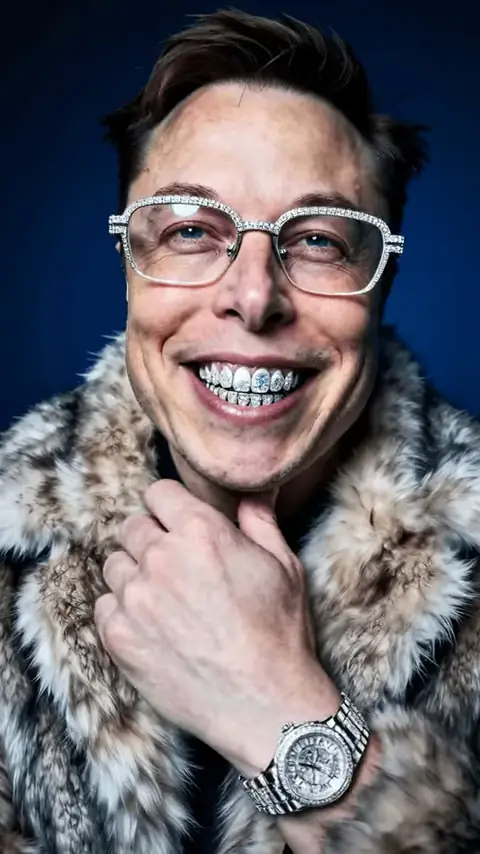
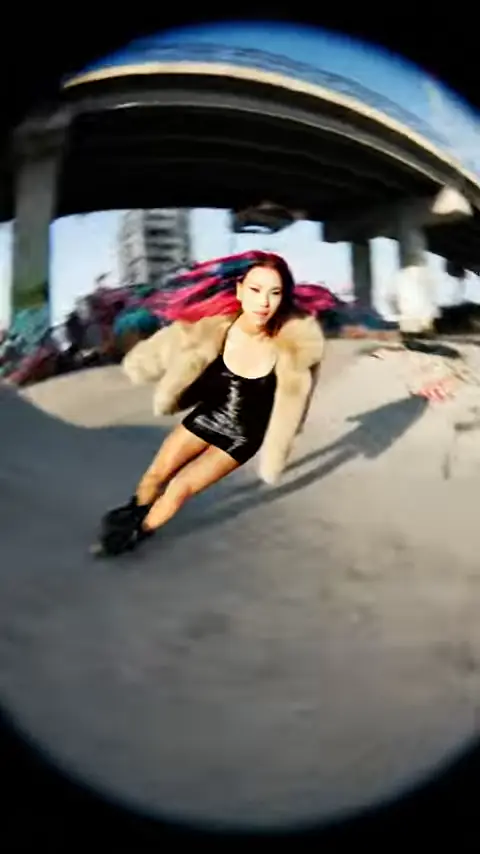
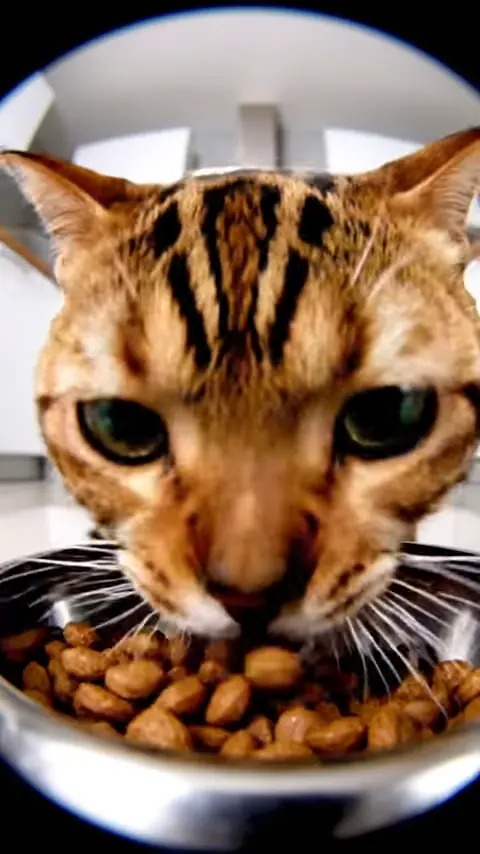
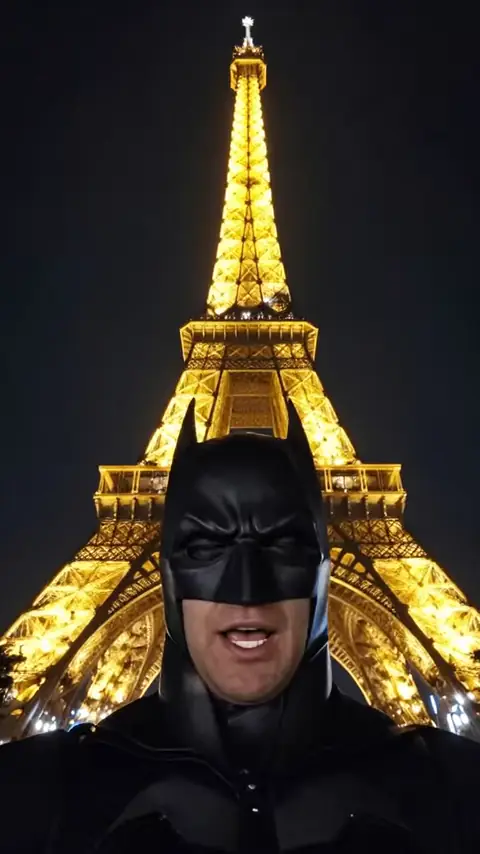
 Kling O3Kling O3
 Grok Imagine
 PixVerse
Every model, one prompt.
Pipe the same prompt through Kling, Grok, PixVerse and more — pick the winner without reshooting.
Type the shot, in plain English.
7+ video models, billed by the second.
5–15 second clips, in any aspect ratio.
Four ways our video studio works around the way you actually shoot.
Kling O3Kling O3Grok ImaginePixVersePipe the same prompt through Kling, Grok, PixVerse and more — pick the winner without reshooting.
Drop in any image, get it moving. Or upload first and last frames and let the model fill the gap.
Vertical, square, widescreen. From 5-second loops to 15-second cuts.
Grok Imagine10PixVerse V5.612Kling O320The newest video models plugged in the day they ship.
Pick a model, write the shot — your first clip is seconds away.
Bring any still image to life. Upload a photo or artwork, describe the motion you want, and the AI generates a smooth video clip with natural movement — no video editing experience needed.
Upload the image you want to animate.
Optionally add a motion prompt to guide how the scene should move.
Select an image-to-video model and generate your animated clip.
Start with a photo or illustration, then describe the movement you want to explore. Use the source image for the scene and the prompt for the action.
Use a source where the subject and important details are easy to see. Decide whether the subject, the camera or the background should move before writing your prompt.
Start with one action and a camera direction. For example, ask for a slow camera push toward the subject while the background stays still. Add more actions only after reviewing the first result.
Compare the output with your source. Check faces, lettering, edges and the motion you requested. Change one instruction at a time so you can compare the results.
The camera slowly moves closer to the ceramic vase. A light breeze moves the dried flowers. Keep the table and background still.
Use this as a starting point and adapt it to your scene. Results depend on the input, model and settings.
Use two images when you want to specify the beginning and end of the clip.
Start with a written scene when you do not have a source image.
Prepare a different look or composition before animating it.
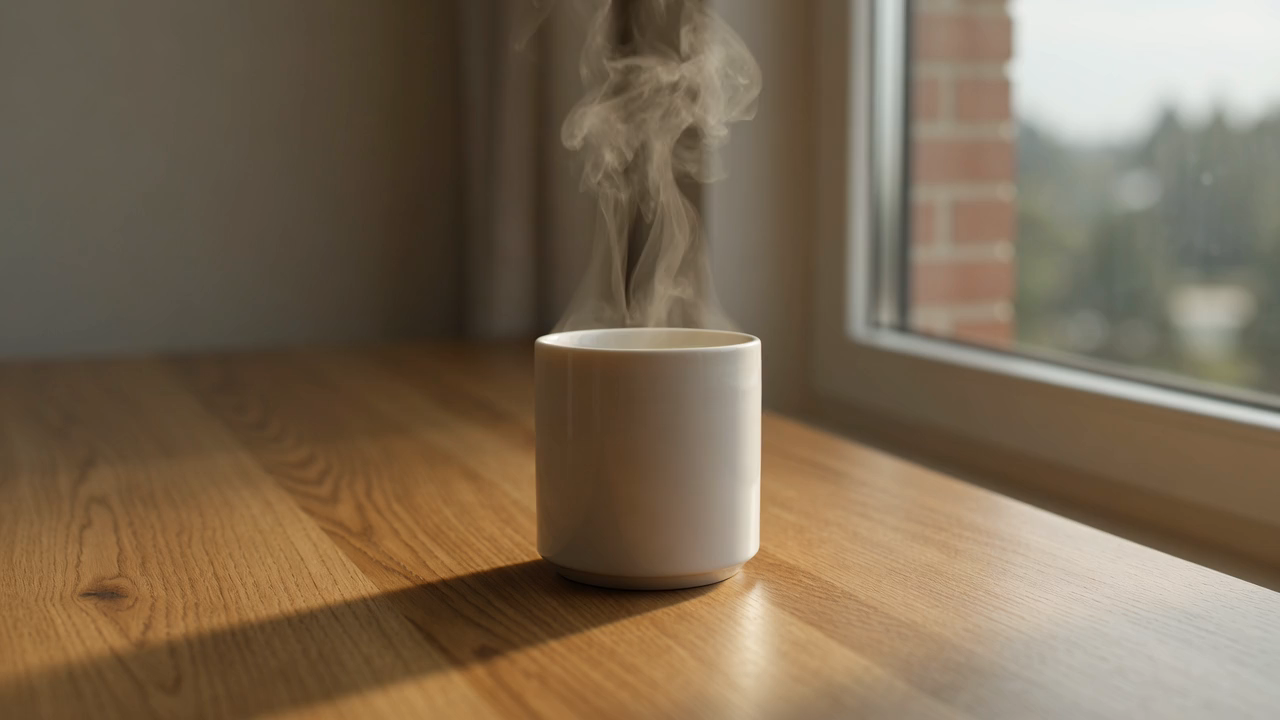
Generated in Make It Gen on November 4, 2026 with Grok Imagine, image to video, 5 seconds, 720p and automatic aspect ratio. The input is the opening frame of our text to video cup example.
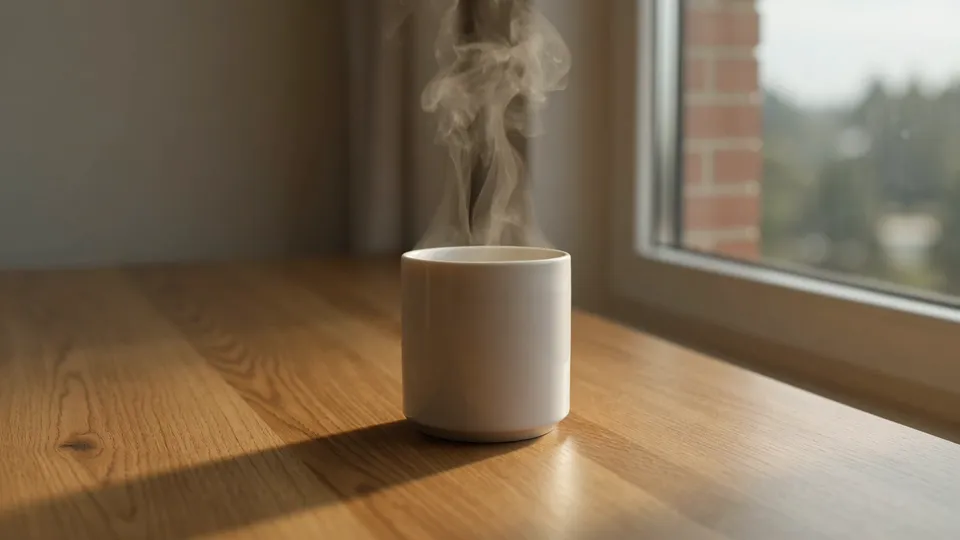
Keep the camera fixed. Steam rises gently from the cup. Keep the cup, table and window still throughout one continuous shot.
In this result, the steam changes while the cup and window stay in approximately the same framing. Compare this with the moving camera in the text to video example. The inputs and instructions differ, so this is a workflow demonstration, not a controlled model benchmark.
Explore the two prompt examples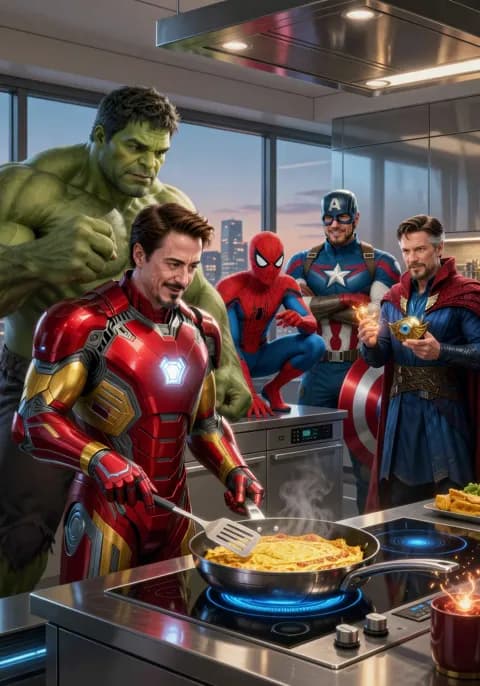
Fast, high-fidelity image and video generation with precise text rendering.
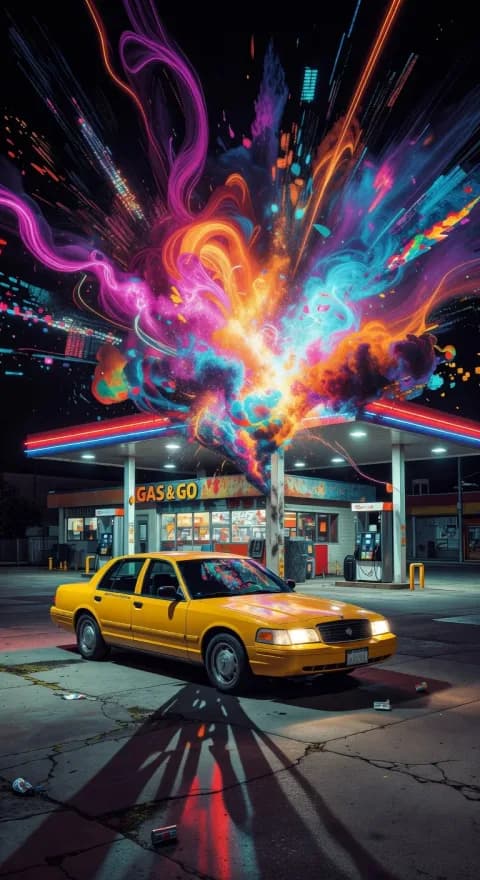

Alibaba's high-fidelity generator at 1K resolution with strong prompt fidelity across image and video.
Studio-grade video generation with 20+ camera controls and significantly fewer artifacts.
Cinematic 1080p video with native audio sync and multi-shot storyboarding.

Fast image-to-video with natural movement powered by Pruna-optimized inference.
Self-hosted Wan 2.2 A14B image-to-video for smooth 480p clips.
Five more studios in the same shell — switch without switching tabs.