


Make It Gen guides
AI video prompts: write a shot, then review the result
An AI video prompt describes what appears in a clip and how it moves. Start with a subject, one action, a camera direction and the light. Then inspect the generated video before adding more instructions.
By Make It Gen · Published November 4, 2026
Open the video generatorChoose your starting input
Text to video
Describe the appearance of the scene as well as its movement. Use this when you do not have a starting image.
Image to video
Upload the composition you want to animate. Focus the prompt on movement and changes to that image.
First and last frame
Provide the opening and closing images. Describe the movement that connects the two compositions.
Choose the workflow before writing. A text prompt cannot supply a missing reference image. If the image needs a different composition or color, prepare it in image editing first.
Build the prompt around one shot
Use this structure as a starting point: subject and setting, visible action, camera movement, then lighting or style. Write concrete directions that you can check in the output.
- Subject and setting
- A plain white ceramic cup on a wooden table beside a window. This defines what should be in the shot.
- Action
- Steam rises from the cup. This gives the scene a visible movement even if the camera stays still.
- Camera
- The camera slowly moves closer. This describes a different movement from the rising steam.
- Light and style
- Soft morning light and realistic texture. This gives visual direction without adding another action.
Set duration and aspect ratio in the generator. Their available values depend on the selected model. Keep those settings fixed when comparing prompt revisions so you can see what the wording changed.
A generated example with the exact prompt
We generated this clip in Make It Gen using Grok Imagine. The prompt and settings below belong to this output. The cup was generated from text; the poster is a frame from the video.
A slow camera move toward a cup
Generated in Make It Gen on November 4, 2026. Grok Imagine, text to video, 5 seconds, 16:9, 720p. No source image.
A plain white ceramic cup sits on a wooden table beside a window. Steam rises gently from the cup. The camera slowly moves closer in one continuous shot. Soft morning light, realistic texture.
The result shows rising steam and a progressively tighter view of the cup. The final framing crops the cup more than the opening. If you need the whole object visible, specify that in your next prompt and check the new result.
One generated result, not a model comparison. The web copy is resized and has no audio. Repeating the prompt can produce a different clip.
For a next attempt, add “keep the entire cup visible throughout the shot” if that framing matters. That is a proposed revision, not a second tested result. Compare the new clip with this one before deciding whether to keep it.
Use the same scene as an image to video input
For this second generation, we uploaded the first frame of the clip above and asked for a fixed camera. The input image provides the scene, so the prompt concentrates on movement.
Image to video example: animate the steam
Generated in Make It Gen on November 4, 2026 with Grok Imagine, image to video, 5 seconds, 720p and automatic aspect ratio. The input is the opening frame of our text to video cup example.
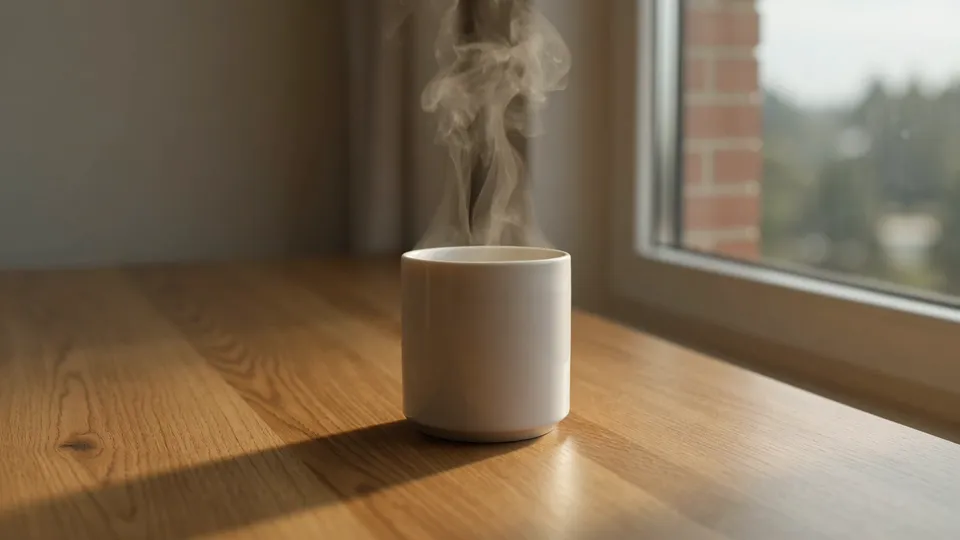
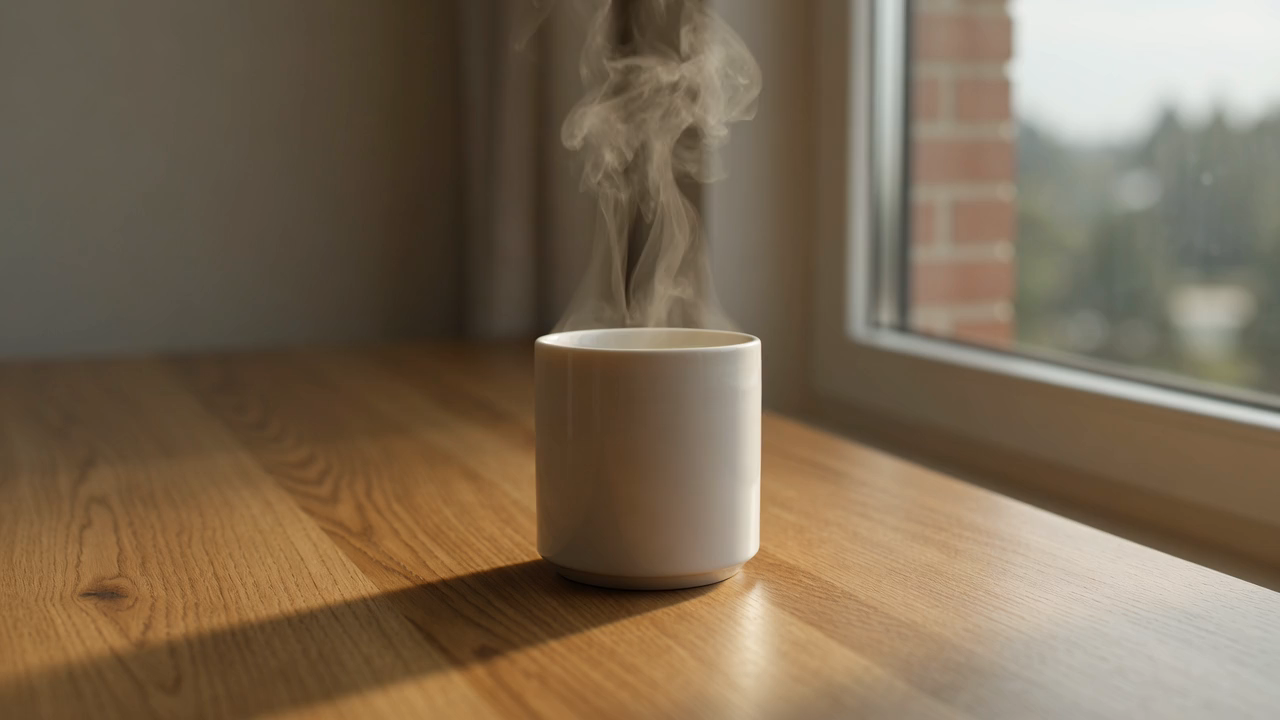
Keep the camera fixed. Steam rises gently from the cup. Keep the cup, table and window still throughout one continuous shot.
In this result, the steam changes while the cup and window stay in approximately the same framing. Compare this with the moving camera in the text to video example. The inputs and instructions differ, so this is a workflow demonstration, not a controlled model benchmark.
Explore the two prompt examplesConnect two source frames
For this workflow, we supplied both the wider opening composition and a closer closing view. The prompt describes how the camera should travel between them. You can try this with your own related images in the first and last frame generator.
First and last frame example: move closer to a cup
Generated in Make It Gen on November 4, 2026 with Kling V3 Standard, 5 seconds, automatic aspect ratio and audio off. Both inputs are frames from our own Grok Imagine cup video: the opening view and the view at 4 seconds.
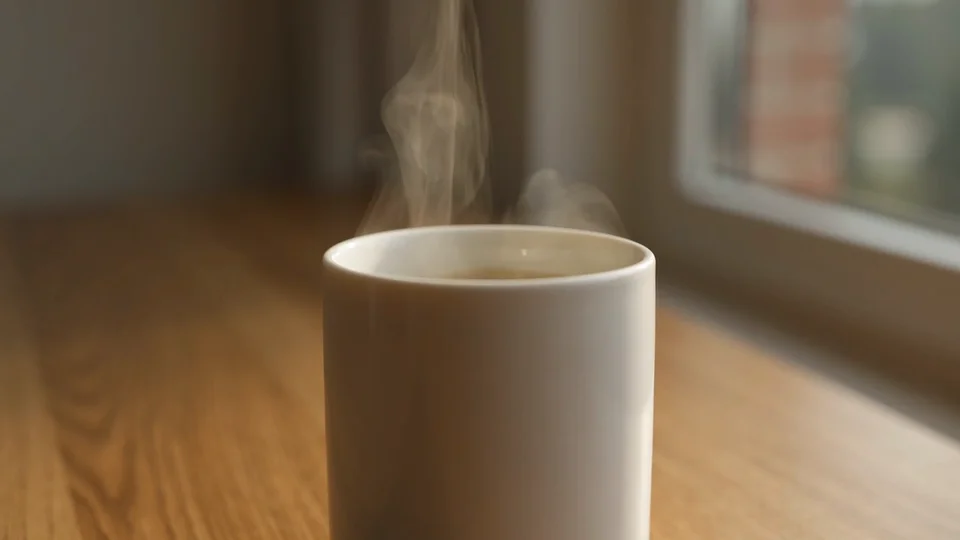
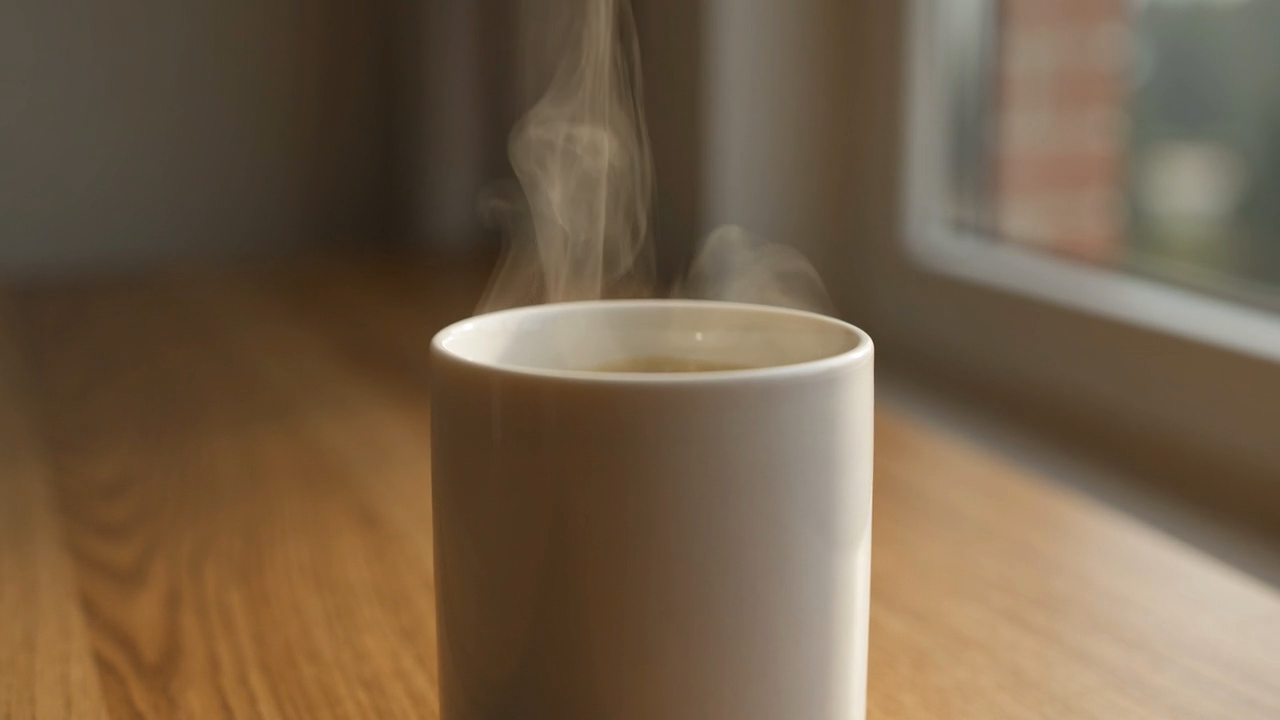
The camera slowly moves closer to the white ceramic cup, matching the closer view in the last frame. Steam rises gently. Keep the cup on the wooden table beside the window in one continuous shot.
The result starts with the full cup, moves closer and ends with the lower part of the cup outside the frame. Steam changes during the transition. The input images guide the composition; this example does not establish exact pixel matching or the same outcome for unrelated scenes.
Recorded generation settings
Model: kling-v3-standard-image-to-video. Duration: 5 seconds. Aspect ratio: auto. Generate audio: false. Default negative prompt: blur, distort, and low quality. CFG scale: 0.5.
Choose a camera direction you can evaluate
- Static camera: ask the camera to stay still while the subject moves. Check whether the background drifts.
- Slow push in: ask the camera to move closer. Check whether the final crop still includes the details you need.
- Sideways tracking: ask the camera to move alongside a subject. Check whether the subject remains visible and its shape stays coherent.
- Pan: ask for a gradual turn to the left or right. Check newly revealed areas for unexpected objects.
Start with one direction. An orbit, zoom, pan and scene transition in the same short prompt make it harder to identify why a result differs from your intent.
Adapt a prompt to your source image
These are writing templates, not additional generated examples. Replace the subject and motion with details that match your input.
Image to video: a small movement
The leaves on the plant move gently in a light breeze. Keep the camera still and the pot centered. Use one continuous shot.
Start from a photo where the plant and pot are visible. Review leaf shapes and background movement.
First and last frame: a change in viewpoint
Move slowly from the front view of the ceramic vase toward the side view in the final image. Keep the vase centered during one continuous camera move.
Use two related views of the same object. Inspect the middle of the transition as well as both endpoints.
Review the clip, then change one instruction
- Watch the whole clip at normal speed. Note missing actions, unexpected cuts and changes in object shape.
- Pause near the beginning, middle and end. Inspect hands, lettering, faces or product edges where relevant.
- Pick one problem to address. Simplify an action, specify the framing or use a different source image.
- Save the exact prompt, selected model and settings alongside each result. Keep attempts distinguishable.
- Compare the revision with the earlier clip. Another generation uses the credits shown in the tool.
If motion is too complex, remove an action. If the composition is wrong, start from a prepared image. If an endpoint matters, try the two-frame workflow. These are ways to test a change, not guarantees that every model will follow it.