
makeitgen
makeitgen

AI images, video, and music — for every creator. No design skills required.

Image

  • Image Generator
  • Image to Image
  • Enhance

Video

  • Video Generator
  • Image to Video
  • First–Last Frame

Discover

  • Models
  • Music
  • Apps

Company

  • Pricing
  • Terms
  • Privacy

© 2026 makeitgen

support@makeitgen.com
makeitgen
AI Image
AI Video
AI Music
makeitgen
AI Music

Features

Text to ImageImage to ImageUpscaleRemove Background

Models

Wan 2.7
Wan 2.7

Grok Imagine
Grok Imagine

High fidelity

Z-Image Turbo
Z-Image TurboPRO

Ultra-fast

PixelPerfect
PixelPerfectPRO

Moody aesthetic

Nano Banana 2
Nano Banana 2

Ultra quality

HyperRealism
HyperRealism

Hyper-realistic

Features

Text to VideoImage to VideoFirst & Last Frame

Models

Grok Imagine
Grok Imagine

Cinema quality

PixVerse V5.6
PixVerse V5.6

Studio grade

Kling O3
Kling O3

Cinematic 1080p

SuperMotion
SuperMotionPRO

Video Studio

Three steps to your video

STEP 1
A drone shot gliding over a misty pine forest at sunrise, golden light cutting between trees, slow cinematic push-in, photoreal
16:95s127 / 1000
+ Cinematic+ Photoreal+ Slow-mo

Write your prompt

Type the shot, in plain English.

STEP 2
Text → VideoImage → Video7+ models
Kling O3
Premium · Smooth
20
Grok Imagine
Stylized · Quick
10
PixVerse V5.6
Studio · Sharp
12

Pick your model

7+ video models, billed by the second.

STEP 3

Generate

5–15 second clips, in any aspect ratio.

Why creators use MakeItGen.

Four ways our video studio works around the way you actually shoot.

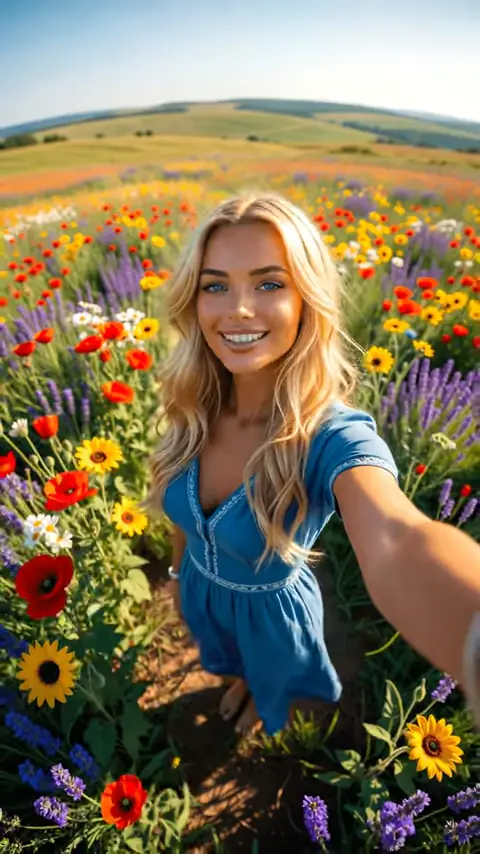
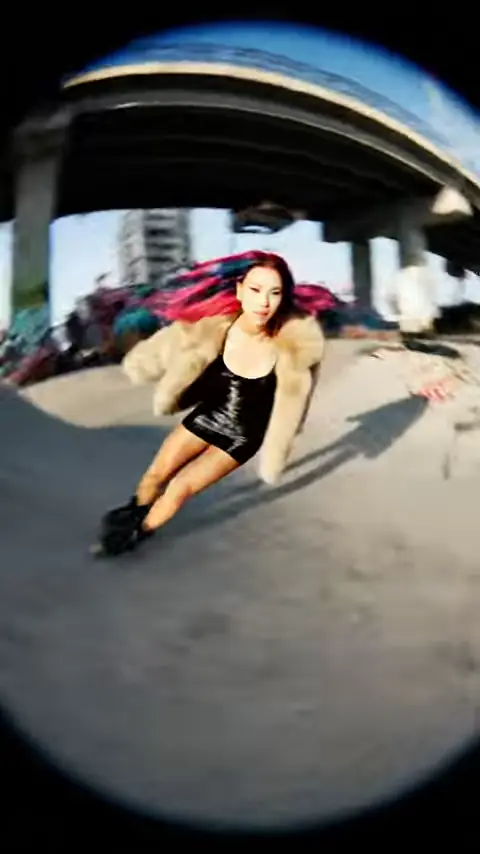
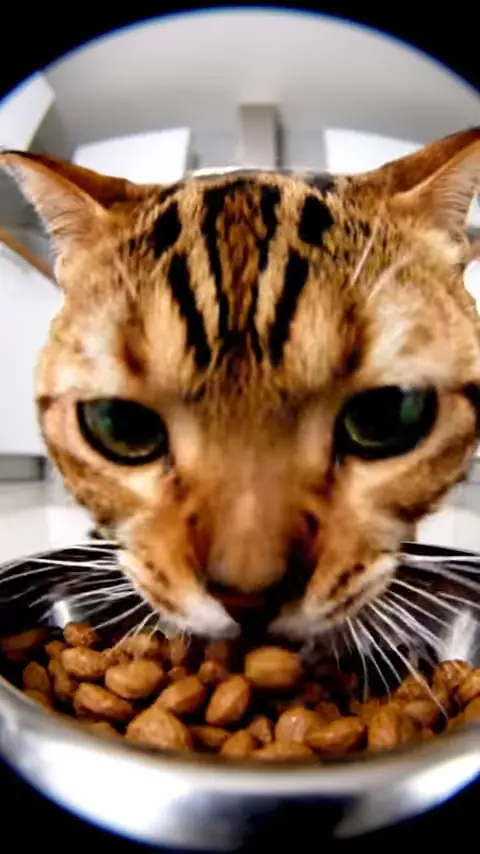
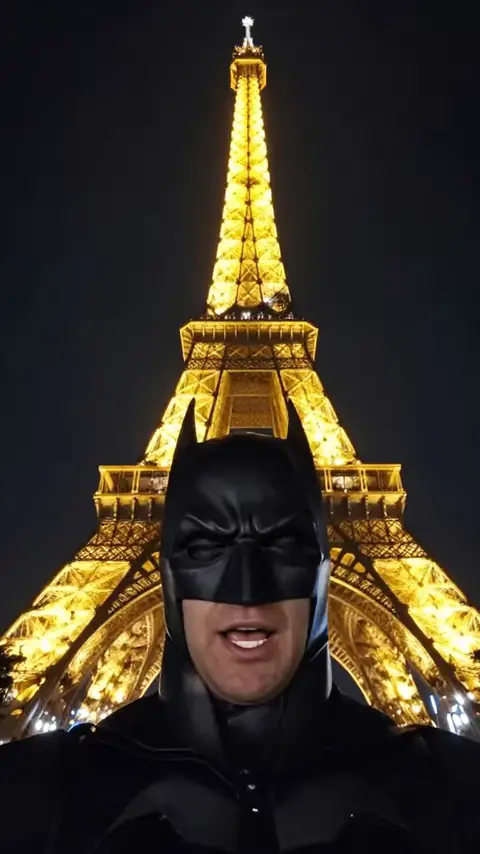
Kling O3
Kling O3
Grok Imagine
PixVerse

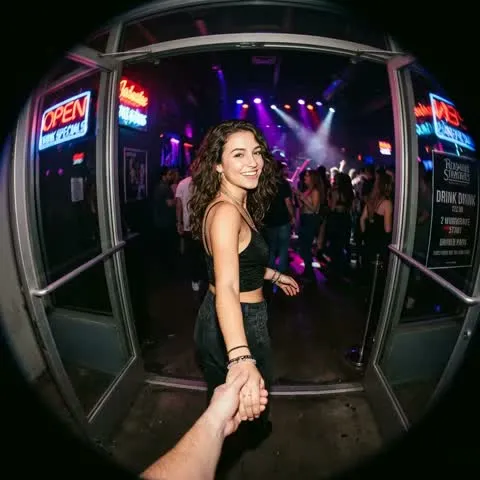
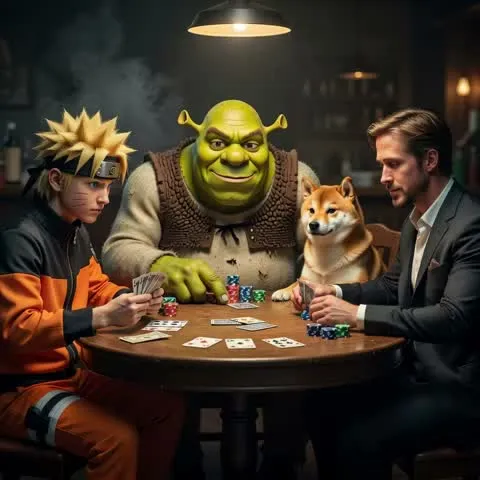
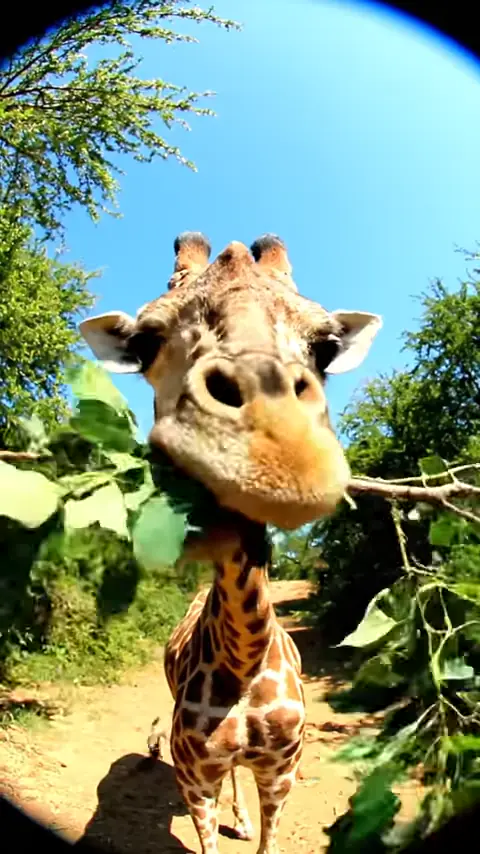
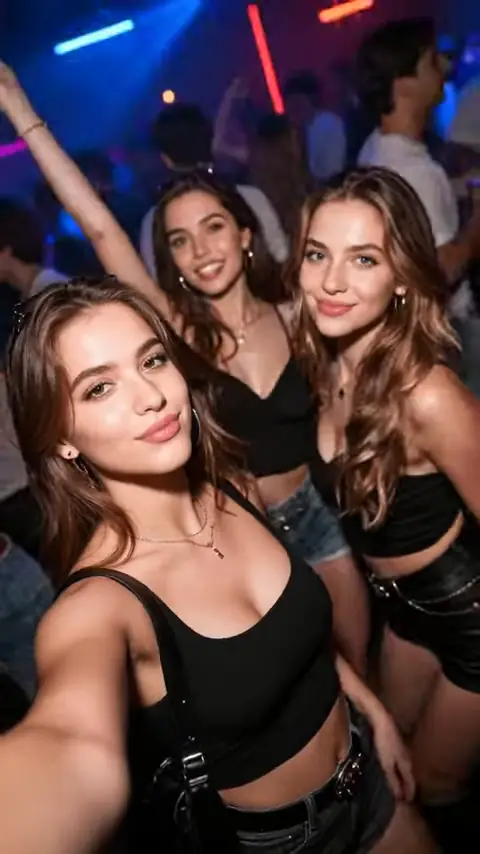
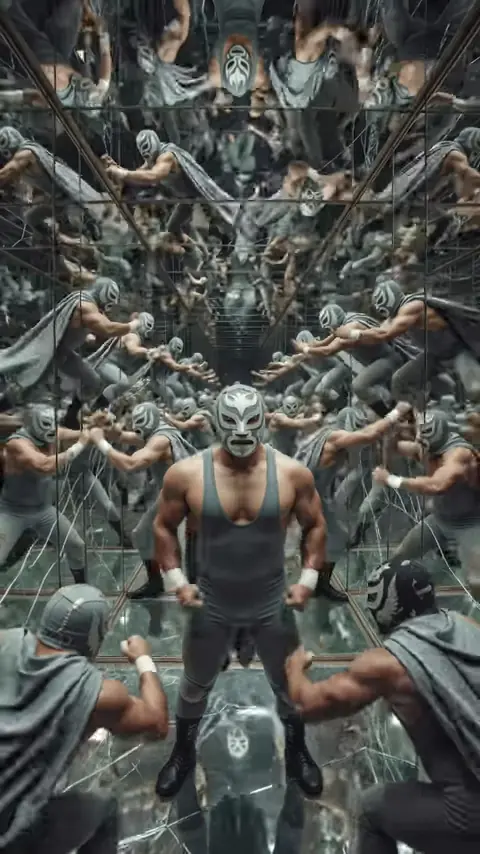
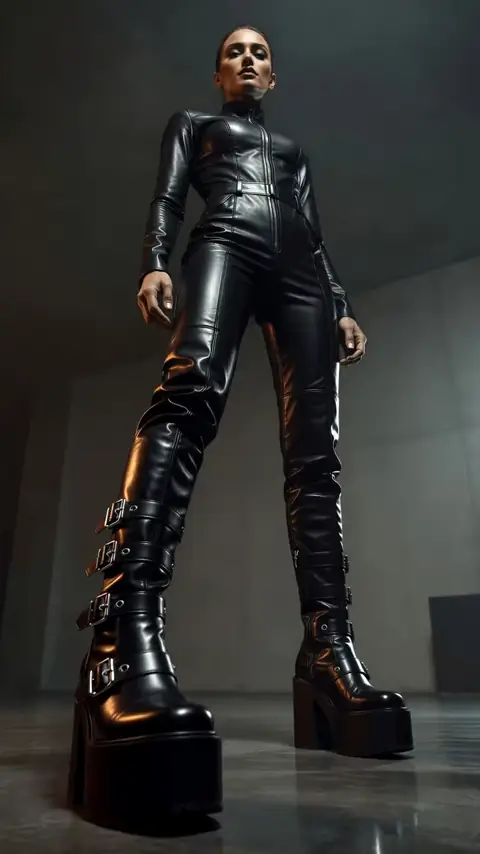
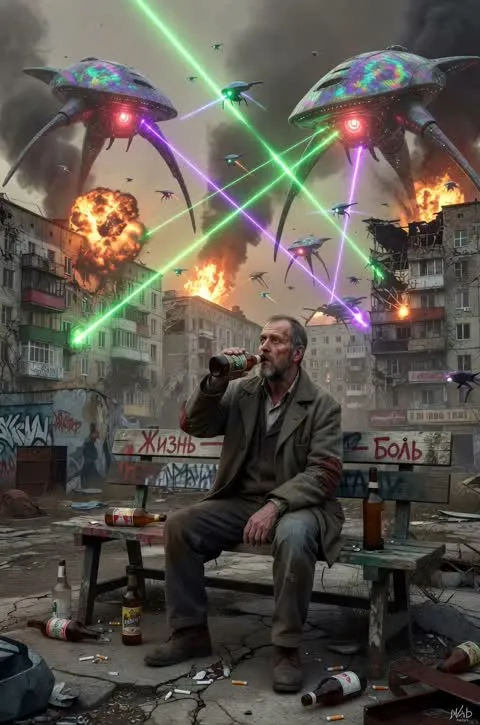
Every model, one prompt.

Pipe the same prompt through Kling, Grok, PixVerse and more — pick the winner without reshooting.
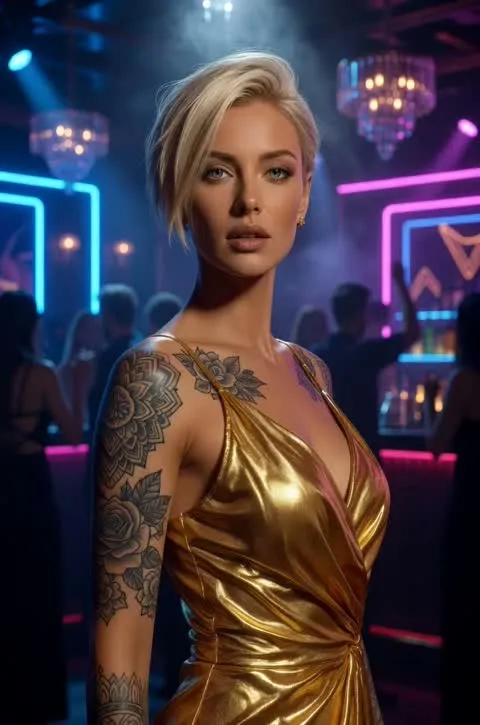
Animate a still
+ make her wave goodbyeRefine
Using as input

Start from a still.

Drop in any image, get it moving. Or upload first and last frames and let the model fill the gap.

9:16
1:1
16:9
Duration
5s8s10s15s

Any duration, any aspect.

Vertical, square, widescreen. From 5-second loops to 15-second cuts.

Models & price per secondcredits
Grok Imagine10
PixVerse V5.612
Kling O320

Bleeding-edge models, day one.

The newest video models plugged in the day they ship.

Got a shot in mind?

Pick a model, write the shot — your first clip is seconds away.

Learn more

Text to Video Generation

Describe a scene in words and watch it become a video. Text-to-video models handle camera movement, subject motion, and cinematic framing — all from your prompt.

How it works

1

Write a prompt describing the scene, action, camera angle, and visual style.

2

Choose a text-to-video model based on resolution, length, or camera-control needs.

3

Generate and download the video clip, then refine your prompt to iterate.
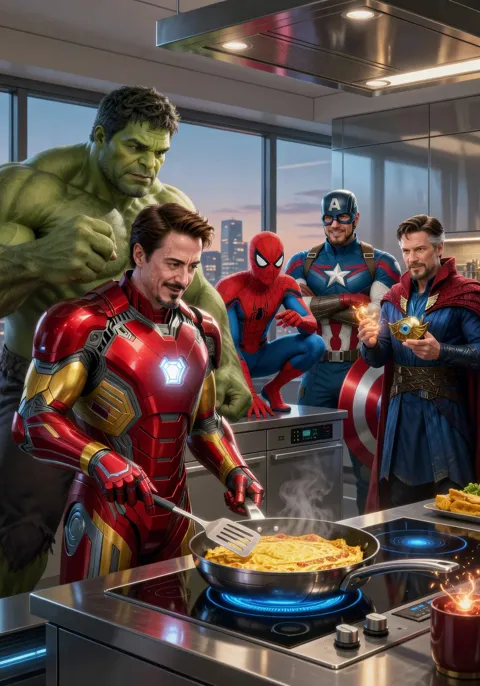
Explore our models

Grok Imagine

Fast, high-fidelity image and video generation with precise text rendering.

Text → ImageImage → ImageText → VideoImage → Video

PixVerse V5.6

Studio-grade video generation with 20+ camera controls and significantly fewer artifacts.

Text → VideoImage → Video

Kling O3

Cinematic 1080p video with native audio sync and multi-shot storyboarding.

Text → VideoImage → Video

SuperMotion

Two-stage text-to-video: a photoreal first frame followed by smooth Wan 2.2 motion.

Text → Video

Wan 2.7

Alibaba's high-fidelity generator at 1K resolution with strong prompt fidelity across image and video.


Text → ImageImage → ImageImage → Video

Nano Banana 2

Ultra-high-quality image generation and editing with advanced text rendering and multi-language support.

Text → ImageImage → Image

What you can make

Short-form social media content
Product or brand teaser videos
Narrative storyboards and animatics
Background loops for presentations
Rapid video prototyping without a film crew

Frequently asked questions

What is text-to-video generation?
Text-to-video converts a written prompt into a short video clip, generating camera motion, subject movement, and visual style from your description.
How long are the generated videos?
Clip length varies by model and settings. Most clips range from a few seconds up to around 10 seconds. Check each model's settings for its supported duration range.
Can I control camera movement in text-to-video?
Yes — PixVerse V5.6 offers 20+ camera controls. Kling O3 supports multi-shot storyboarding. SuperMotion anchors motion from a photoreal first frame. Camera keywords (dolly, pan, drone shot) in your prompt also guide most models.
Which text-to-video model is best for quality?
Kling O3 outputs up to 1080p with native audio. PixVerse V5.6 provides studio-grade quality with reduced artifacts. SuperMotion produces visually grounded clips via a two-stage pipeline.

Explore more tools.

Five more studios in the same shell — switch without switching tabs.

Image Studio — Static frames. 10+ models, batch up to 4.
01
Image
Image Studio
Static frames. 10+ models, batch up to 4.
AI Music — Full songs from a prompt. Vocals or instrumental.
02
Music
AI Music
Full songs from a prompt. Vocals or instrumental.
First & Last Frame — Connect two stills into one clip.
03
Video
First & Last Frame
Connect two stills into one clip.
Enhance Studio — Upscale images and remove backgrounds.
04
Utility
Enhance Studio
Upscale images and remove backgrounds.

AI VIDEOS,
FOR EVERY CREATOR.